0:00Hey, it's Tim here. In today's video, we're
0:01going to be looking at some logical
0:04functions,
0:04specifically the if, then, else, and, and
0:08all functions inside of Tableau. Now, these
0:11are some
0:11of the most used functions. In fact, when
0:13you learn Tableau, this is probably the
0:15most fundamental
0:16function you can pick up. So in today's
0:18video, I'm going to be breaking them down
0:19and I'm going
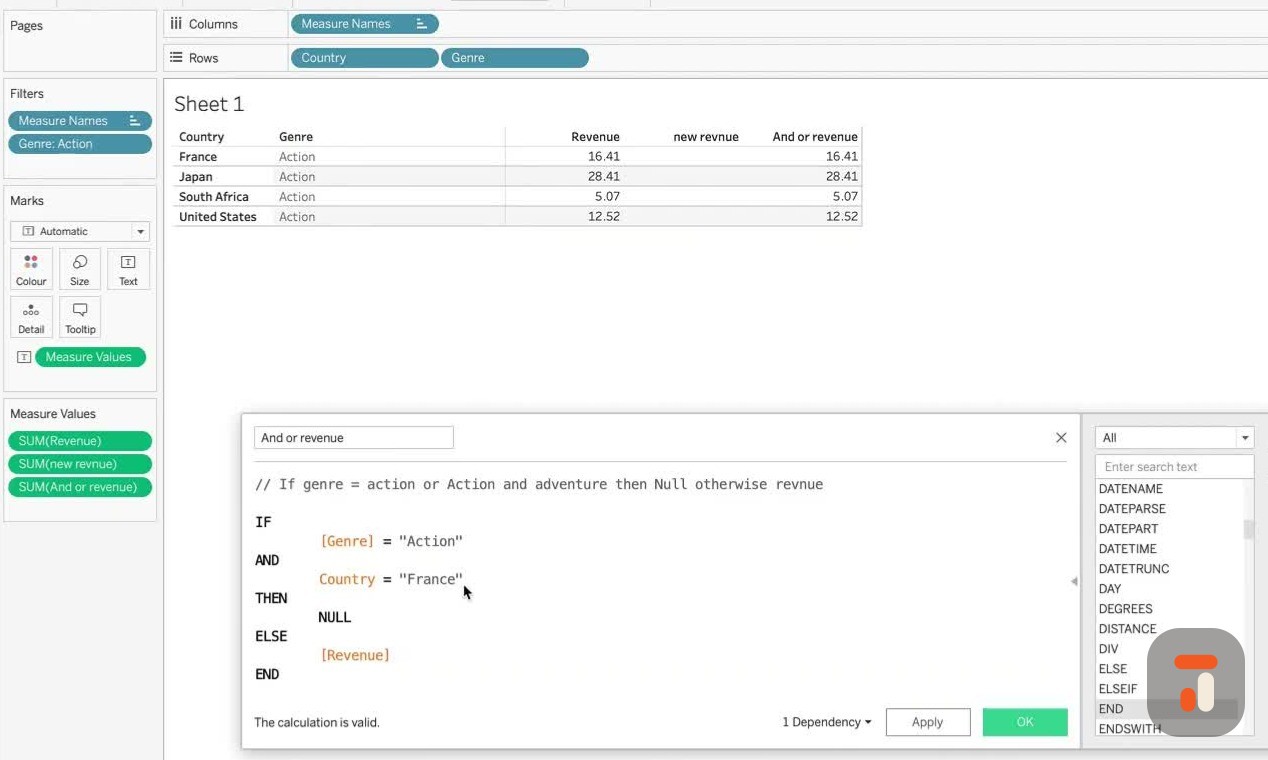
0:20to be showing you how they work. Okay, so
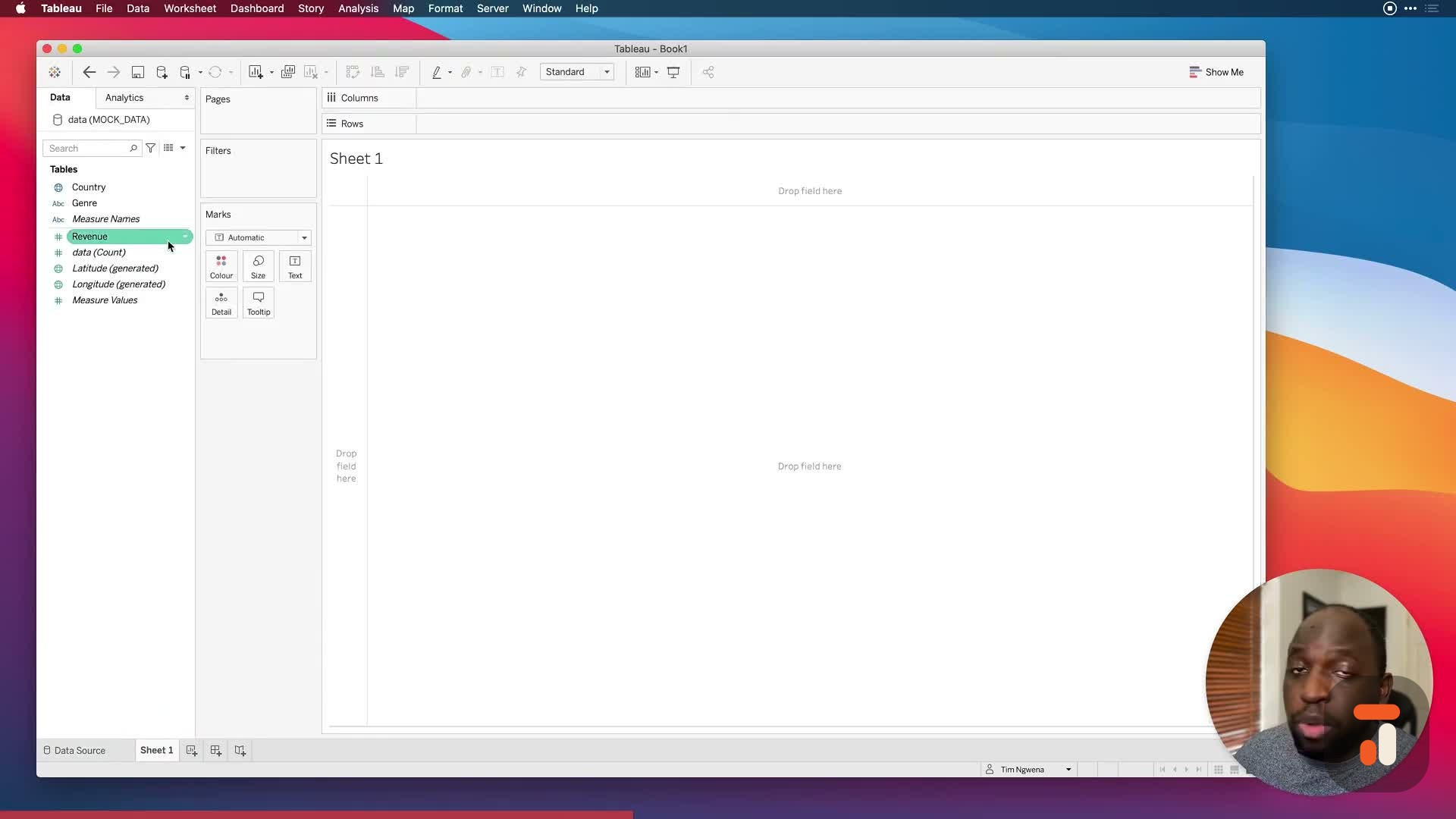
0:22now to set this up, what I'm going to do is
0:23I'm going to
0:24connect to a previous mock data set that I
0:25'd used before. I'm going to put a link in
0:27the description
0:28so you can have a go at this yourself if
0:30you'd like to. I'm going to hit excel here
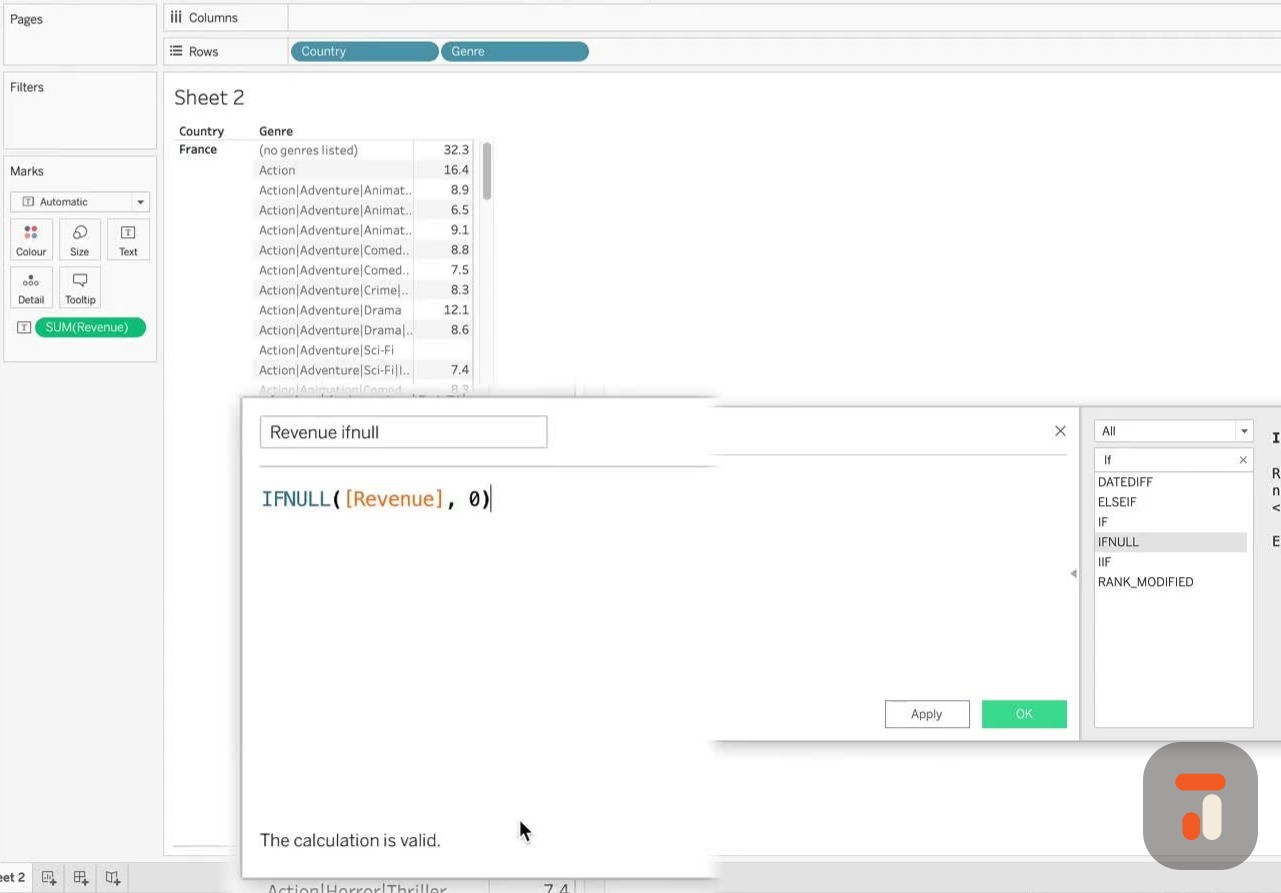
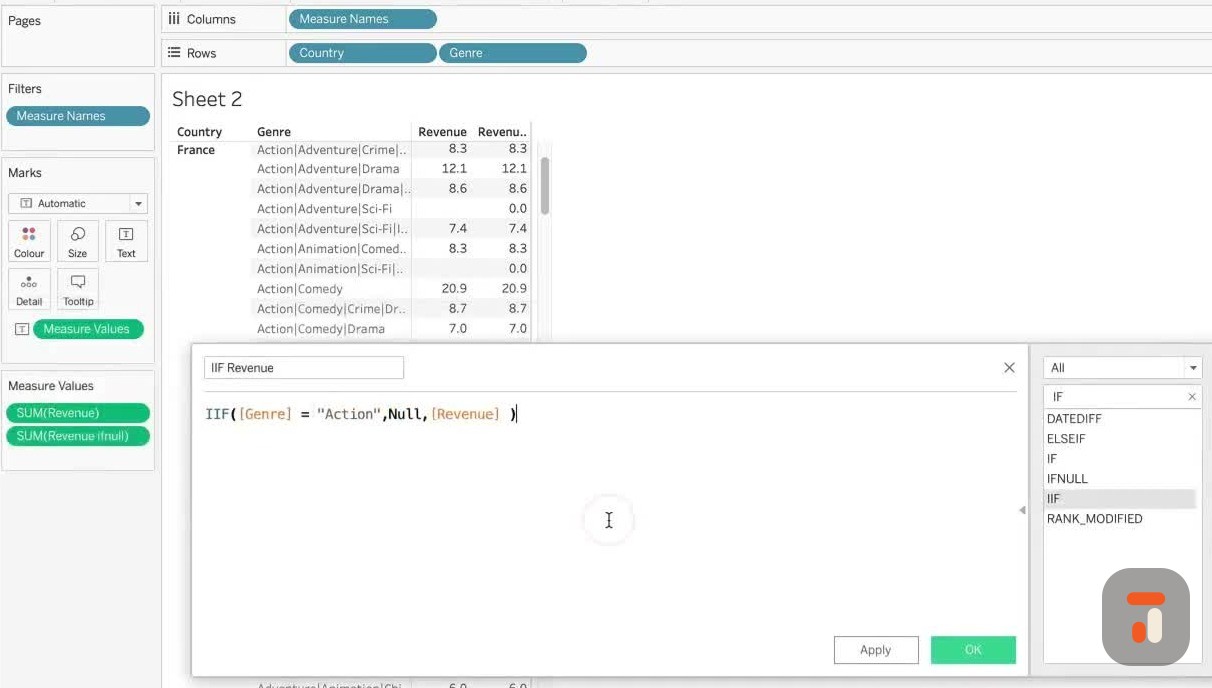
0:31and I'm
0:32going to connect to the mock data set. I'm
0:34going to hit open and we're pretty much
0:36good to go. Now,
0:37this data set is essentially about film
0:39genres and roughly how much revenue they're
0:42generating
0:42in each country. The values aren't
0:44realistic, it's just a sample data set. So
0:46let's go ahead in here
0:47to sheet one and we're pretty much good to
0:50go. Now, if I drag genre onto roads and
0:53then country
0:54just in front of genre, we get this nice
0:56hierarchy. We can start to understand the
0:58structure of our
0:59data. You can see that the genre field has
1:01this pipe separator where there is more
1:03than, you know,
1:05one type of film in the same genre. And
1:07then I can bring the revenue field here and
1:10put it next to ABC
1:11and you can also see that we have some null
1:13values. Essentially, we have some values
1:15that
1:16weren't entered into the database. So they
1:17're not nothing, they're not zero, they're
1:19just null. Okay,
1:20so we're not going to solve those problems
1:22right now. Maybe I'll show you how to do
1:23that a little
1:24later on. But what I want to now do is open
1:26up the calculation window to show you how
1:29to write
1:29the first IF expression. So let's go ahead
1:32in here and just type in IF and when we do
1:34that, you see
1:35that it auto completes. And if I select
1:37that, you'll see that on the right hand
1:39side, it shows
1:40us a summary. So Tableau is always trying
1:41to help you to make sure that you're doing
1:43the right thing.
1:44And if I look at this on the right hand
1:45side, it gives you an example of how this
1:47expression should
1:48be written. But I actually think it's
1:50better to think of an IF expression in
1:51another way.
1:52Think of it as if you're asking a question
1:54of Tableau. So for example, if I just put
1:57this in
1:58a comment block by just doing this, you can
2:00also use a new comment blocking feature in
2:032020.4,
2:04but we're just going to do a single line
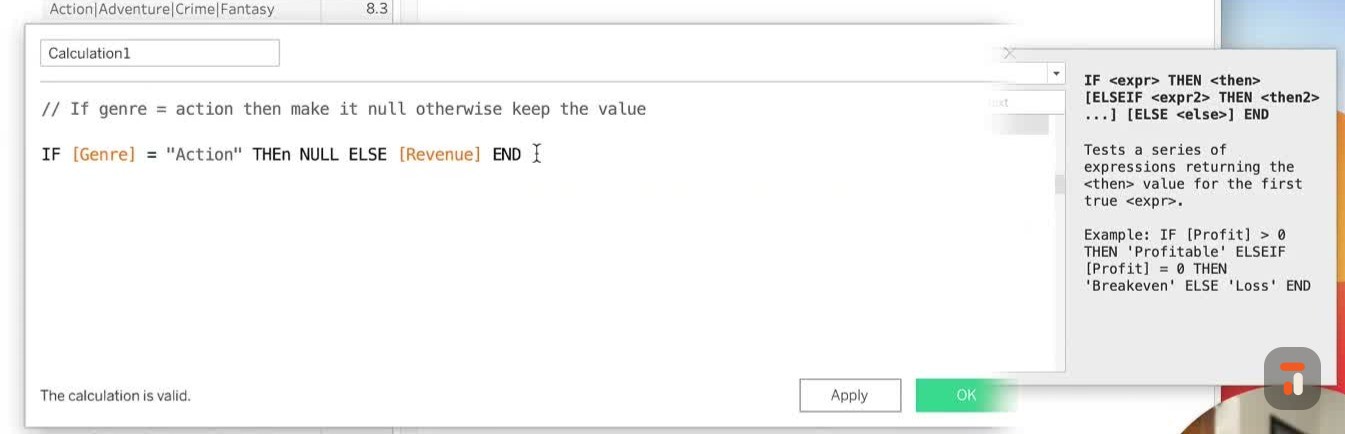
2:05comment and we're just going to say,
2:06IF genre equals to action, then make it
2:12null. Otherwise, keep the value. Okay, so
2:18this is a
2:18basic thing we're going to do. We're going
2:20to basically create a condition that does
2:22a few things to the data set. And it's
2:24going to make it easy for us to work with
2:26because essentially
2:26I want to remove the values that relate to
2:28action. So let's go ahead here on a new row
2:31. And you'll
2:31see at the moment, calculation contains
2:33errors, we haven't written anything. So let
2:35's go ahead
2:36and actually write something. So now let's
2:38start typing IF, hit enter. And now what we
2:41can do is
2:42type our expression. Now our expression is
2:44essentially some sort of logical check
2:46against
2:47the data. In this case, we're checking
2:49genre equals to action. So the two things
2:51we have to
2:52be aware of is that genre is a string field
2:54. And we also have to make sure that the
2:56thing we're
2:57checking matches exactly to something we
2:59have in our data set. So if I just
3:00highlight that for you,
3:02if I just go here to the square, you can
3:04see the genre here is a string and action
3:07is spelled
3:08specifically this way, we're going to need
3:10to make sure that both of those make it
3:12into a calculation
3:14in the correct manner. So now I'm going to
3:15go ahead and do that straight away. So let
3:17's just
3:17go in here and type in genre. And you'll
3:19see that this comes up. And you can see
3:21that it also says
3:22here that it's a string with the ABC
3:23notation just to the left here, you can
3:25just see that there.
3:26And now that I've selected that I can then
3:29say equals. And then to get action in here,
3:31if I just typed action, even though it
3:33matches the same spelling as our data set,
3:35this wouldn't work because I need to write
3:37a string in here. So let's go ahead and put
3:40a brackets
3:41in front of that, sorry, speech marks in
3:42front of that, and do that again. And then
3:44now we've closed
3:45that off. Now that's going to check the
3:47right thing. Okay, so now we've got our
3:49condition,
3:50we've got our sort of thing for it to check
3:51. Now we need to tell Tableau what we wanted
3:54to do.
3:54So if the genre equals action, then make it
3:57null. Okay, so we're going to go ahead and
4:00do exactly
4:00that. I'm just going to type in then and
4:03then type in null. Okay, otherwise keep the
4:06value. Okay,
4:07so to say otherwise, we essentially need to
4:10type in else. Okay. And now that we've done
4:13that,
4:13we just need to refer to the thing that it
4:15should be. So in this case, this is
4:16actually the revenue
4:17field. Let me just go ahead and show you
4:19this again. The revenue field is the thing
4:21that we're
4:22working with, okay. And this is actually
4:24also what's in here. If I just sort of show
4:26you this
4:26whole column is basically the revenue field
4:28. So we need to make sure that this then
4:31says revenue,
4:31not sum of revenue, because we're just
4:33doing a basic row level calculation here.
4:35But we basically just need to refer to that
4:38. And then now that we're done, we just need
4:40to hit
4:41end, tell us that we've stopped asking
4:43questions, hit enter. And now you'll see
4:45that the calculation
4:46is valid. So let's just go through that
4:48again. If the genre equals to action, which
4:51is a string,
4:52which is why I've got it in speech marks,
4:54then null else revenue. So essentially,
4:57if the genre is action, make this null.
4:59Otherwise, just return the value that's
5:02there in the first
5:03place. Notice I didn't type this properly,
5:05but Tableau is still quite permissive of
5:07how I've
5:07typed it. You can also just write it in
5:09like sentence case and it generally will
5:10still work.
5:11But now I'm going to call this new revenue.
5:13Okay, and hit apply. And then whilst this
5:18calculation
5:19window is open, I'm actually going to drag
5:21that in, in here. So you can see that I don
5:23't have to
5:23close my calculation window for this to
5:25stop working. I'll just drop it in there.
5:28And now
5:28that you'll see if you look very, very
5:30closely here, you'll see that action is
5:33actually null.
5:34So our new revenue calculation is doing the
5:36job that it's supposed to do. Now just to
5:38show you
5:38that this is dynamic, and you can change
5:41this, I'm actually going to go in here and
5:43change this
5:43from action to let's say action pipe comedy
5:46. I need to find the pipe character on my
5:48keyboard.
5:49Oh man, that's a real tough ask to do this
5:51whilst I'm recording live, but I think that
5:53's the one.
5:54And then comedy do that there. And now what
5:57we should see is that this value will come
5:59back
6:00and this value will go null. So let's hit
6:02apply. And that's exactly what's happened.
6:04So you can see
6:06that change is happening. This is our if
6:08statement working correctly. So just to
6:11summarize the basic
6:12function, you need to understand that this
6:14if is essentially starting the logical
6:16expression,
6:17that then essentially starts the bit of the
6:19question where we're saying what to do.
6:21And once we've figured out what to do for
6:24everything else, this is how you define
6:26what's
6:26going on. And so this is really good if you
6:28just want to ask one question of tableau,
6:30if you're just
6:30going to want to give it one condition, but
6:32then the next thing might be that you want
6:34to give it
6:34a range of condition. And that's where the
6:37next sort of tweet to this comes in the
6:39else if
6:39statement that allows you to keep asking
6:41questions. And that's what we're going to
6:43cover next. Okay,
6:44let's get stuck in. Okay, so we've written
6:47a basic function. Now let's make this a
6:50little bit more
6:51complex. Let's say that I want to check if
6:54something equals to action and comedy. Okay
6:58,
6:58so action and comedy as one genre and
7:00action as well. Okay, how do we do that?
7:03Well, there's a
7:04couple of ways to do it, you can either do
7:06it the way I just said it, which is to use
7:08an and
7:08expression to check if something is all
7:10secrets or something else. Or we can keep
7:13asking questions.
7:14So let me show you the first and maybe
7:16simpler way to understand this. Okay, over
7:18here where I
7:18said else, essentially, what I'm going to
7:20do is I'm going to change this, I just
7:22copied it there
7:23by mistake there. So if I go back here, and
7:25I just say where it says else revenue,
7:27essentially,
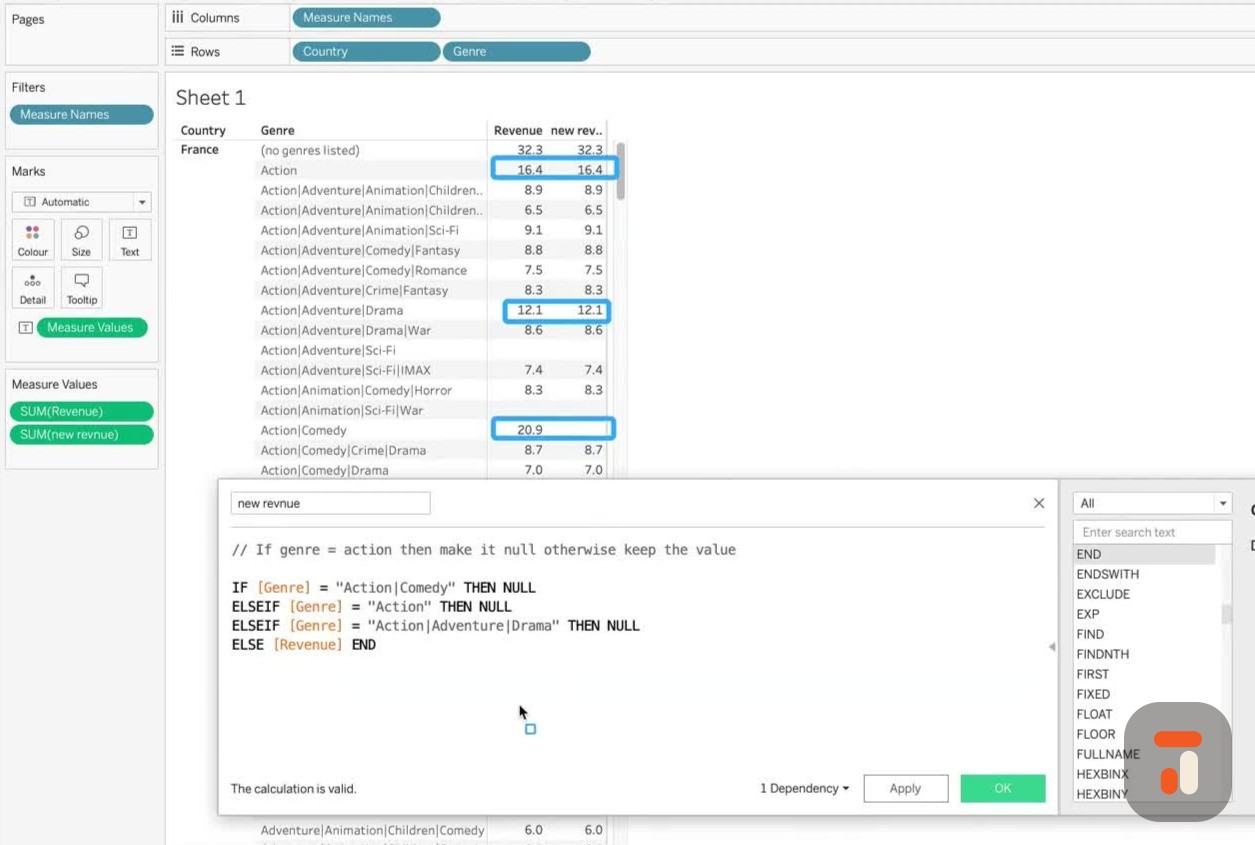
7:28after this, we basically have an
7:30opportunity to keep asking questions. Okay,
7:33so if the genre
7:34equals action, comedy, then NOS, okay. But
7:37what if here I do this, I put this on a new
7:40line. And
7:41instead of just saying else, I say else if,
7:43and then hopefully, you see where this is
7:46going,
7:46I can now ask the next question. So I'm a
7:48bit lazy, as you all know, I'm going to
7:50copy this,
7:51I'm going to copy this exact statement, I'm
7:54going to put it right here. Okay, because
7:56now I'm about
7:57to check the next thing, okay. And then I'm
8:00going to go on to a new line and put the
8:02else that was
8:03there before here. So essentially, the last
8:06time I checked something, I always have to
8:09end this with
8:09an else statement. Notice this calculation
8:11is valid, but we're not done yet. We always
8:14have to
8:14end the last question with a single else
8:16not an else if you can't just keep writing
8:18else if,
8:19but if you want to ask another question,
8:22then you just keep on going with else if so
8:24,
8:24if you see where this is going, I'm going
8:27to add a couple more questions into this.
8:29But the reason
8:30I'm copying and pasting is because I'm
8:31using the calculation I've already written,
8:33I'm trying to
8:33save some time. And so now we're in a good
8:36place. What I'm going to do is I'm also
8:38going to ask that
8:39question of action. Okay, we'd already done
8:41that before. But now you can see that
8:43happening. And
8:45then what I might do is I might also do
8:46something here in the view. So action,
8:48adventure and drama.
8:50Now let's let's really test my spelling
8:52here. So let's go adventure. I now know
8:54where the pipe
8:55character is. And the what were you doing
8:58drama? Here we go. Okay, so I didn't do a
9:01capital D. So
9:02I've already failed the spelling test. So
9:04action, adventure, drama, then now so what
9:07should we expect
9:08to see? Let's just highlight what we're
9:10going to see first, I'm going to expect to
9:12see action and
9:13comedy as now so that's this one over here,
9:16which is already now action should be also
9:19now so the
9:19value on the right should be now here, then
9:22action adventure and drama should also be
9:24now so what
9:24we're expecting when we hit enters for
9:26those rows to be empty, essentially on this
9:29right hand side,
9:30new column that we've created, let's exit
9:32out of that hit apply, and you'll see they
9:34all go blank.
9:35So this is how you ask multiple questions.
9:38Okay, this is how you sort of start to
9:40stage things. But
9:41this is how you use else if and you know, I
9:43've seen some really nasty things. Okay, I
9:46've opened
9:46up workbooks where they've been like
9:48something silly, like, you know, 50 else if
9:51statements in
9:51a row because they're 50 elements inside of
9:54a dimension. And so people are just asking
9:57the
9:57else if question for every single variant.
9:59I've also seen this used to clean up
10:01datasets, let's
10:02say you've got a category that's misspelled
10:03, you can essentially change the spelling of
10:05that
10:05category with a modified category
10:07calculation. Okay, so whatever you do here,
10:10you just got to
10:11remember that this is the skeleton
10:13framework for asking questions, it doesn't
10:16limit what you can do.
10:17Okay, because what I could do is I can
10:19always replace this null statement with a
10:22whole
10:22calculation. Okay, I can literally do this,
10:25it's quite common for people to do this to
10:27make it
10:27easier to read their calculation, although
10:29say net, then they'll open up sort of a
10:31double space
10:32here. And then they'll go up one line, and
10:35then they'll indent just so that the
10:37question they're
10:38asking is actually there. And then you
10:40guessed it, some people will even do this.
10:43If and then
10:44start asking another if question inside of
10:47this else if statement, okay, so you can
10:49nest these
10:50things to create really complicated logic.
10:53But I always say to people like, you know,
10:55try and solve
10:56that in data prep tools if you possibly can
10:58, because then it makes this aspect so much
11:01easier
11:01to deal with. But if you can't solve it,
11:03and this is the only tool you've got to fix
11:05a problem,
11:06then this is where you should do it. Okay,
11:08so just remember, you can turn any of these
11:11sort of
11:12actions that you do after a then statement
11:14into a whole calculation, you could do an L
11:17OD, you can
11:18use any of the other functions we talked
11:19about previously, you're just simply stip
11:21ulating how
11:22Tableau should treat that portion of the
11:25data that you've defined right here. Okay,
11:27so that's one way
11:29of basically asking multiple questions. Now
11:31, the other way is the more natural way that
11:34is using
11:34something like and or or statements, okay.
11:36And this is a more natural way because that
11:39's how we
11:39talk today. You know, when you go to
11:42someone and say, hey, I'd love to see this
11:44and this, or I
11:45wouldn't mind seeing this or that, okay,
11:47that's how we talk naturally. So this is
11:49another way you can
11:50sort of build the question. So what I'm
11:52actually going to do is I'm probably going
11:55to just leave
11:55this as null here, I'm going to make this
11:57valid, I'm going to hit apply, and we're
11:59just going to
12:00leave it as is so we can open it later on.
12:02I'm going to hit OK. And now I'm going to
12:04open up a
12:05new calculation. Okay. So for this one, I'm
12:07also going to call this and or revenue,
12:14okay, because
12:14we're basically going to try and do some
12:16basic calculations with this. And so we're
12:18going to do
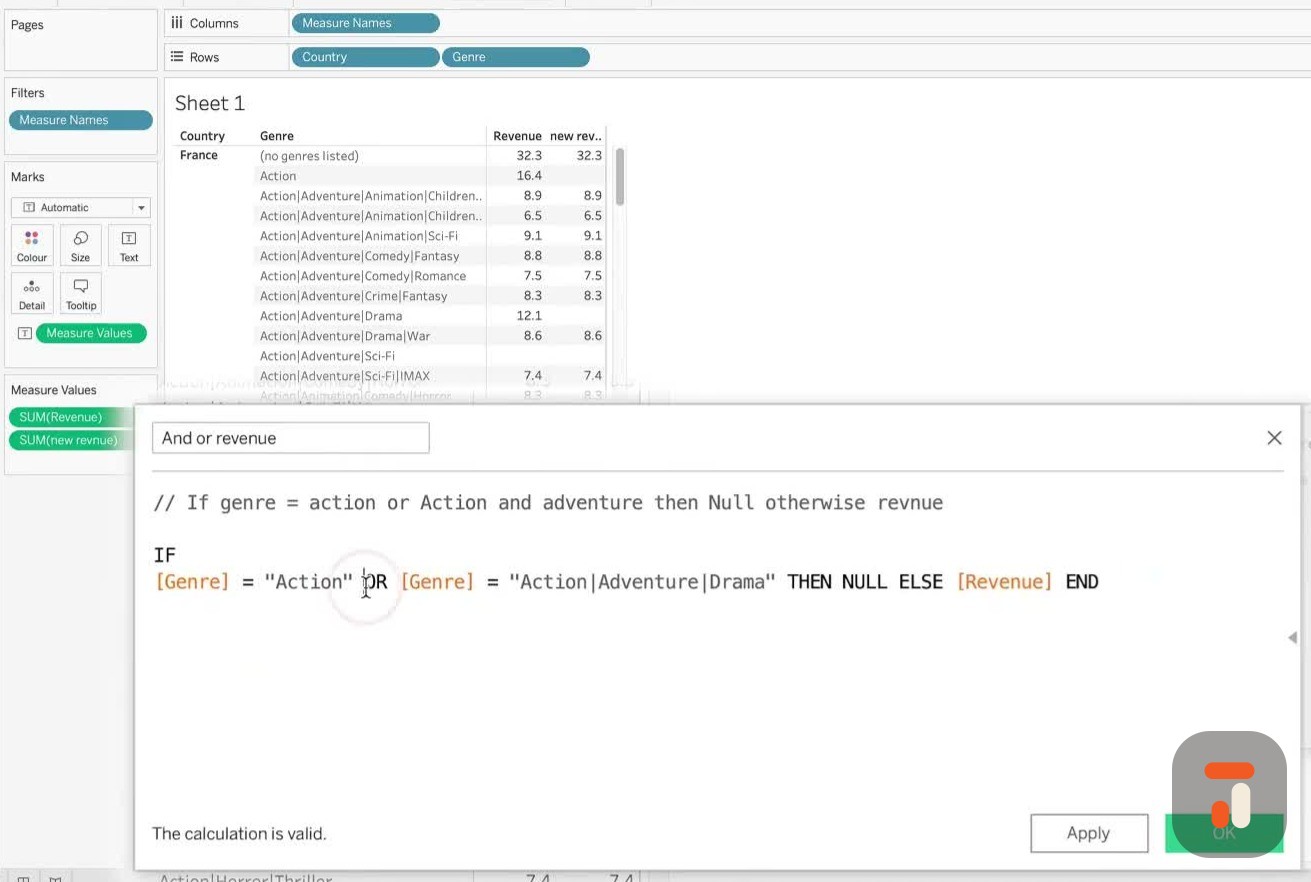
12:19the same thing. I'm going to put my
12:21question right at the top. So I want to say
12:24, if genre equals
12:26action, or action and adventure, then null,
12:33else, revenue. And you can see I almost
12:39fell into the
12:40trap myself, I'm writing it as if it's a
12:42Tableau calculation. Then null, otherwise,
12:44let's just
12:45write this like a human being, you can see
12:47I've been using Tableau for too long.
12:48Otherwise,
12:49revenue, just to keep it sort of, you know,
12:51correct. Obviously, it's going to complain
12:52about a syntax error because we haven't
12:54written anything. But now I think we're
12:56ready to do this.
12:56So let's go ahead and do this. If genre,
12:59okay, let's just make sure this is auto
13:02completed equals
13:04and then what we want to do is action again
13:06, like we did before, I can't spell, you'll
13:09know that. So
13:10we should turn that into a meme or
13:12something. If genre equals action, and then
13:15or action and
13:17adventure, so one or the other, okay, then
13:20let's type in the or statement, you can see
13:23that Tableau
13:24automatically completes that action or and
13:27now this is the this is slightly tricky bit
13:30,
13:30I have to go and ask the whole question
13:32again, the Tableau is not smart, I can't
13:34just say
13:35action or and then the next thing I have to
13:38say, if genre equals action, or genre
13:40equals action slash
13:43adventure. Yeah, I'm just going to put it
13:47like this. And then we're going to do one
13:50more for
13:50drama. So we can actually see the change.
13:53Okay, then. So we've done our or statement,
13:56then no,
13:57else, revenue, like exactly as we did
14:00before, and then we're going to end that
14:02statement. Okay.
14:03And now that's a valid connection
14:06calculation. So let's just break this down
14:09into slightly more
14:10sort of easy to digest things. So let's say
14:13this, if a genre equal action, I'm going to
14:15enter here,
14:16or genre equals action and adventure and
14:18drama, then now else revenue, and so by
14:24doing it this way,
14:25what I've done is I've made it much easier
14:27for someone to come in and just understand
14:29this
14:29as a basic question. In fact, I'd almost do
14:31this, I'd almost put this in on a new line.
14:34And then you
14:34could format it like this, so that it's
14:36easier for someone to just break this down,
14:38yeah, into
14:39its own sort of setup. So when someone
14:42comes in to edit this, they know that all
14:45they're really
14:46dealing with are these sections of the
14:48calculation. I think I just put one tab too
14:52many. I can't get
14:52that perfectly aligned. It's really
14:55annoying me. But if someone comes into this
14:56like this,
14:57it's suddenly easier for them just to
14:58change this. Okay. They just, they know
15:00exactly what's going
15:01on. They don't need the or statement. They
15:04can just get rid of that in one bulk. And
15:05it makes
15:06it so much easier to work with. So this is
15:08one way you can ask the question. And let's
15:10just hit apply
15:11so that it turns up here and or revenue. I
15:14'm going to put it right next to our new
15:16revenue.
15:16And you can see that action exists, which
15:19is there. And it is also null. Okay. It's
15:21actually
15:22over here. I forgot to change the order. So
15:24let me drag this down here on the bottom of
15:27this measure
15:27values pane. And now you can see this is
15:29our and or revenue. I'm going to expand
15:31this so we can see
15:31the names more clearly. There we go. That's
15:33a lot better. So now you can see new
15:35revenue and
15:35and or revenue are doing the same thing.
15:37And the key thing here is action and
15:39adventure drama
15:41should also be empty. Okay. And that was
15:43the same one we used before. So you're
15:44probably thinking,
15:45Hey, Tim, come on. How can I know this
15:47works? So let's change it to drama and add
15:50an extra pipe
15:51and add war. Okay. And now this time and or
15:54revenue should have the value here and not,
15:58sorry, the value here and not handle
16:00revenue war. So there you go. You see that
16:02switched around and
16:03now pretty much good to go. So that's one
16:05way of using the all statements ask more
16:08complicated
16:08questions. But here's the thing. The all
16:11statement works specifically if one or the
16:16other statements
16:17is true. Only one of them has to be true
16:19for this to function properly. So if you
16:21say genre equals
16:22action, but there is no other genre that
16:24says action, adventure, and drama, let's
16:26just say,
16:27let's say there's no genre here called fish
16:29. Let's type in fish. Let's not top a fish
16:32fish.
16:33Hit apply the function still going to work.
16:36Okay. Because only one of these has to
16:39match.
16:39Now watch what happens when I say and okay,
16:43let's type in and so there isn't a genre
16:47that says
16:47action and but there isn't a genre that
16:50says fish. So now that I've done that, let
16:53me hit apply and
16:54see what happens. You see our action
16:56category now returns the value. There isn't
16:59, there is a genre
17:00called action, but there isn't a genre
17:02called fish. And so this whole statement
17:05doesn't match,
17:05which means it goes onto the next line and
17:08returns the revenue. It doesn't do this,
17:11which is what we
17:12asked it to do if both of these are true.
17:14Okay. Now for the more attentive of you,
17:17you'll notice
17:17there is also another big problem with this
17:19calculation is that this could never be
17:21true.
17:22There is no way in this data set that any
17:25single row can both simultaneously have a
17:28genre called
17:29action and a separate genre called fish.
17:32Even if I chose another value that did
17:34exist, for example,
17:35action adventure and sci-fi, it couldn't
17:37simultaneously have the same values at the
17:40same time because they're on different rows
17:42. So the other catch with the am function is
17:44you have
17:45to make sure you are checking different
17:47things. And that's why here in the second
17:49one, you actually
17:50have to change this to check a different
17:52column of data or a different condition. It
17:54could be a
17:54different expression, but it just has to be
17:57different in some way to this first item,
18:00because if you're checking for something
18:02that is essentially going to happen on the
18:03same row,
18:04then this am function will never compute
18:06anything back. And so nothing will ever
18:08match.
18:09So let's change this one here to a country.
18:12Okay. And what I'm going to do is I'm going
18:15to check if
18:15the country equals France. Okay. And what I
18:18will do is not double equals, single equals
18:20. I'll just
18:21do this F A R A N C. Shout out to anyone
18:24watching the video from France. So here we
18:27are. If genre
18:28equals action and country equals France,
18:31then return null, otherwise revenue. Now,
18:34in order
18:34to do this, what we have to do is go to the
18:37action area and just select keep only.
18:39There's three
18:40items which just have action. So let's keep
18:43only. And now you can see we get France,
18:45Japan,
18:46South Africa, United States. I actually had
18:48four items. I think I was already selecting
18:49one. And so
18:50there's three more. So now here, if we go
18:53and check this genre equals action and
18:55country equals France,
18:57what we should see is a null here on this
18:59line. So let's go ahead, apply. And now you
19:03see the
19:03am function is working. So the am function
19:05allows you to check two different things.
19:08Also note again,
19:09this is again quite permissive. I didn't
19:10put the square brackets. I always like to
19:12put the square
19:12brackets just because that's how Tableau
19:15itself types it. But if you just type it as
19:17a word and
19:18you know, spell it exactly like the colon
19:19name, Tableau will sort of let you get away
19:21with it.
19:21So you'll see that still works. So that's
19:24the and or all function. Essentially, they
19:26do two
19:27different things. An all function lets you
19:29check items within the same dimension as
19:31well as other
19:32conditions that can be across multiple
19:34dimensions. But the am function won't let
19:36you check the same
19:38thing if it happens to happen on the same
19:39row. In this particular instance, we're
19:41writing only
19:42row level calculations. Essentially, this
19:44is not aggregating anything. There's no sum
19:46here. There's
19:47no average. We do aggregate the eventual
19:49values here on the left hand side. But we
19:51're not doing
19:52that in our calculation. So at a row level,
19:54there's no way that you could ever have two
19:57genres on the same row, if that makes sense
20:01. So that is the if and else else if and the
20:04all
20:05functions that have covered in one video.
20:07Now, there is one more if function that I'm
20:10just going
20:10to quickly sneak into this if that's okay.
20:14And that is essentially the if null item.
20:17So if I
20:17just type in if you'll see that there is
20:19this if null and actually there's also the
20:21IIF. So I never
20:23know how to say this. If someone has had to
20:24say this correctly, let me know. It's kind
20:26of like if
20:27or IF or I don't know. I don't know. How
20:30should you say double IF? Who knows what
20:33that should be
20:33called? Because that does need to be a
20:35different name. So you can sort of name it
20:37appropriately when
20:37you're talking to people about it. But I'm
20:39going to show you those two next. We're
20:40going to get
20:41stuck in and just very quickly show you how
20:43those works. They don't take long to cover
20:45at all. And
20:45in fact, the if function, the second one
20:48here is actually a sort of a super speedy
20:50hack for writing
20:52the slightly longer versions that we've
20:53been writing all along. If you're only
20:55going to be
20:55checking something small. Let's go ahead
20:57and try that out. Okay, so what I'm going
20:59to do is I'm
20:59going to hit okay. I'm going to close this
21:01calculation. I'm going to open up a brand
21:02new
21:03sheet. I'm going to build out the same view
21:05, country, genre and revenue. I'm going to
21:08bring
21:08the old value for revenue that we had. Okay
21:12, now to try this first one. So the if null,
21:15let's create a calculated field and let's
21:17just go in here and type if. I'm just going
21:19to double
21:20click if null and it will bring it into the
21:22view for us. And then we're just going to
21:24check revenue.
21:25Okay, and basically what this allows you to
21:27do if you look at how it's been written on
21:29the right
21:30and here on the left. It's telling you. So
21:32it's basically checking the first
21:33expression. If this
21:34first expression is null, then you just
21:36answer a comma and then you tell it what it
21:37should be
21:38if it is null. So if null, then just put in
21:41a zero. Okay, and I'm just going to call
21:43this revenue
21:45if null. Yeah, so let's just go in here and
21:49do this. And you can see the calculation is
21:52valid.
21:53Hit apply. And now you'll see that that's
21:55in there. Let's drag it into our view. Let
21:58's make
21:58sure it goes into the box. And now you'll
22:00see, especially in this particular row, let
22:02me just
22:02annotate this for you. So in this row here,
22:05and in this row there, you will see that it
22:07's actually
22:08returning a zero. So it's a lot simpler and
22:10it's a lot easier than writing something
22:12like this.
22:13This is actually what you would have
22:15written if revenue. In fact, that's not
22:18what you would have
22:20said if is null. In fact, let me just do
22:23this. This is what you would have written
22:26to get the
22:27same result. Let me just comment that out
22:29so you can see the actual if is null. There
22:34you go.
22:35Is null revenue. So you can see the actual
22:37calculation. If is null revenue, then
22:40zero else revenue. Okay, end. So this is
22:49what you would have written to do the same
22:51thing. And you
22:52can see how much shorter and efficient this
22:54is. It's just much easier to write. Does
22:56exactly the
22:56same thing. If I hit apply, you'll see the
22:59same result comes back out. Okay, so that
23:02is a very,
23:02very sort of nice thing to have and be
23:04aware of. If all you're doing is checking
23:06if something is
23:06missing a value, you can just very simply
23:09replace it. You'll also remember that this
23:11actually does
23:12exactly the same thing as a function we did
23:14before, which is the ZN function, which
23:16essentially
23:16goes and looks after nulls for us in our
23:19data set. So again, that's another thing
23:22you can do if you
23:23were sort of want to optimize for this
23:25particular check. There's three ways of
23:26writing the same thing
23:28in one. So that's the if null function
23:29covered off. Now let's have a look at the
23:32double IF. I'm just going to call it the
23:33double IF function. So let's go hit apply
23:36and hit okay
23:37to close that off. And now that's in the
23:38workbook. I'm going to have this workbook
23:40in the same folder
23:41as the mock data that you're downloading.
23:43So you can go ahead and download that too.
23:45Okay, now the
23:46next calculation we're going to write is
23:47create a calculation field. We're going to
23:49keep everything
23:50as is. And this time I'm going to go in
23:52here, type in if, and you'll see that this
23:54I, double IF is
23:56just right there. I'm just going to bring
23:57that in. And this now has three parts.
23:59Essentially,
24:00this allows us to ask to write, this allows
24:03us to write an if then else statement in
24:06basically three
24:07expressions. So the first thing is the test
24:09. So I'm going to do, I'm going to do a
24:11little check.
24:12So just say genre equals action. Let's do
24:18this action. Okay. And instead of writing
24:21then,
24:22all you need to do is a comma. Okay. And
24:24now you just need to say what would happen
24:26if this is the
24:28case. So in this case, I'm just going to
24:30write null. Okay. And then the else
24:31statements comes
24:32after the next comma. And in this case, we
24:35're just going to do revenue. Okay. Just to
24:37keep that nice
24:38and simple. And then what I'll do is I'll
24:41call this IAF revenue. Spell out correctly.
24:45And now
24:45that's basically the statement. And it
24:47basically saved us the trouble of having to
24:49write one of the
24:50previous functions we did. So if I just go
24:53in here and pick out the new revenue here,
24:55if you actually
24:56write a calculation, then you put your
24:58cursor into it. It shows you what's inside
25:00of that calculation
25:02over here on the right side. So you can see
25:04we built this out a little bit, but you see
25:06,
25:06we had to write if genre equals action,
25:08whatever comedy, then null, else, revenue,
25:12end. And this
25:13just allows us to avoid having to do that.
25:15You can't do multiple checks, but if you're
25:17only
25:17doing one check, this is the much faster
25:19and efficient way of doing it without sort
25:22of
25:22getting yourself in a twist. So that's
25:25pretty much it for the if functions, the I
25:28FF,
25:28double IF even, that's an athletics
25:31association. I think that's an athletics
25:34association,
25:34but nevertheless, this is a very nice,
25:37simple function you can use. The if
25:39statements,
25:40you use them all the time. I probably use
25:42this function two or three times a day when
25:45I'm deep
25:45inside a Tableau workbooks daily. And if
25:47not, I use it to fix very quick problems. I
25:50sometimes
25:50even use it to create filters in workbooks.
25:53I use it to create conditional coloring
25:56sometimes.
25:56It's a very functional, very useful
25:59function that if you don't know how to use
26:01this,
26:02you're going to struggle with Tableau. It's
26:04literally a core foundational function.
26:06Everyone needs to know how to use this. If
26:08this is the first thing you learn, great.
26:10If you've just
26:10started Tableau and this is where you are
26:12and you understand this, you're going to be
26:14great
26:15with Tableau. Okay, that's pretty much it
26:17for the video. This has been a little bit
26:18of a long one,
26:19but I didn't want to sort of bring out all
26:21these sort of side topics. And so I've
26:24covered a whole
26:24bunch of functions in one video. Hence, the
26:27length is a little bit longer and hopefully
26:29you go off
26:29and find new ways and exciting ways of
26:31using this. In a lot of these videos, I'm
26:33keeping the
26:34explanation simple and in tables. I'm not
26:36building visualization because if I start
26:38to add in the
26:39complexity of building visualizations as
26:41well, these videos will go on for half an
26:43hour and 40
26:43minutes. And to be honest, there's lots of
26:45other people doing whole built out examples
26:48on YouTube
26:48for you to go and find out. But if you're
26:50just getting started and you just want to
26:51understand
26:52the fundamentals, this is where to be. Okay
26:54, thanks for watching. You know what to do
26:56at the
26:56end of the video. If you've enjoyed it,
26:58please subscribe, please like, please share
27:00. And if you
27:01haven't, let me know in the comments what
27:03you'd like to see instead. So I am working
27:05through a
27:05whole load of content. At the moment, it's
27:07functions. So please definitely let us know
27:09what you'd like to see. And we'll get there
27:10in the end. Alright, thanks for watching.
 Tableau | Data visualisation | Analytics